
How to use Game On Sign
Turn any TV, tablet or monitor into a live scoreboard in about a minute. The screenshots below are from the live site.
1Open the setup page
Go to gameonsign.com on any device. Without a team picked it opens the setup page, where you build your sign. Nothing to install, no account.

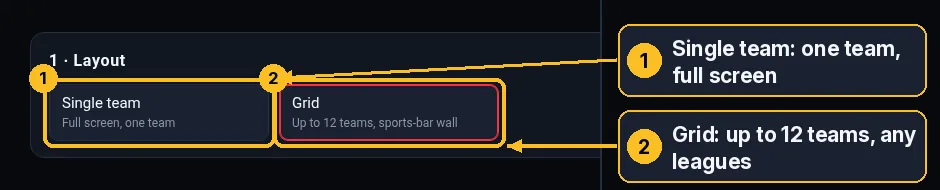
2Choose Single team or Grid
- Single team: one team fills the screen, with the next game, a countdown, live scores and the upcoming schedule.
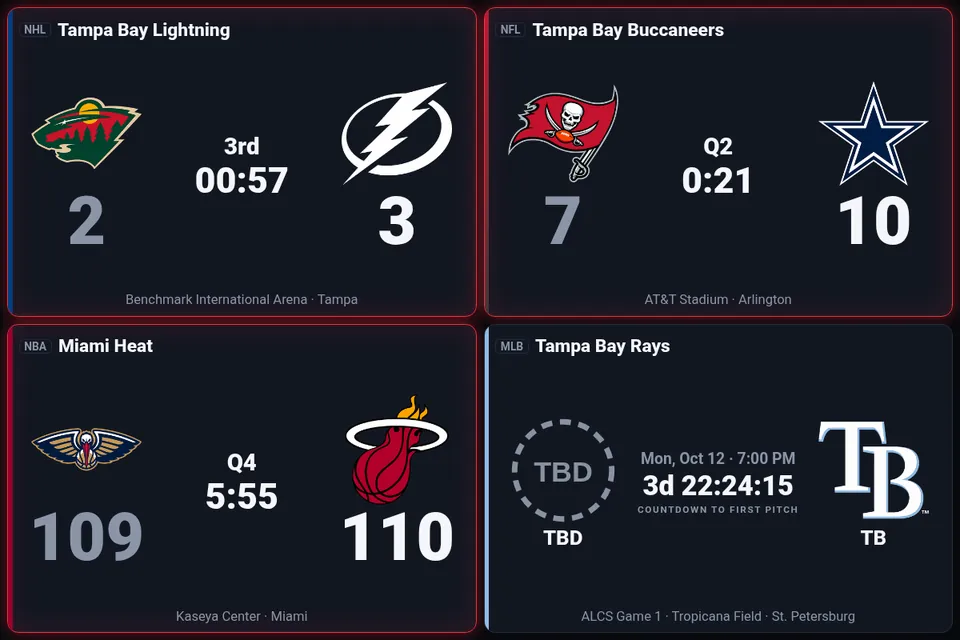
- Grid: a sports-bar wall of up to 12 teams from any mix of leagues.
3Pick your team(s)
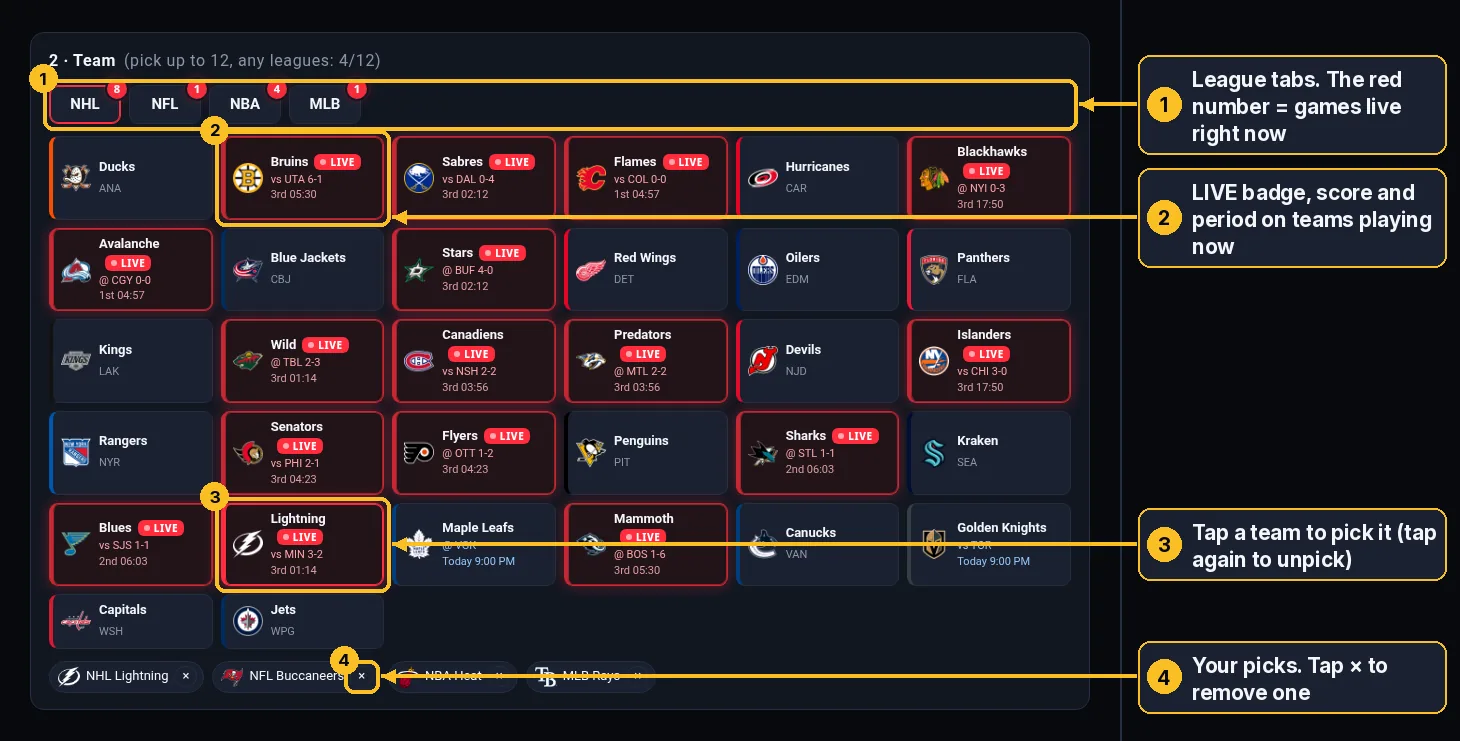
- Tap a league tab (NHL, NFL, NBA, MLB). A red number on a tab means that many games are live right now.
- Tap a team. Teams playing right now glow red with a LIVE badge, the score and the period; teams playing later today show the start time in blue.
- For a grid, keep tapping teams, switching league tabs as you go (up to 12). Tap a team again to unpick it.
- Your picks appear as chips below the teams. Tap the × on a chip to remove it.
4Options (optional)
Choose a dark or light theme, the time zone for game times (automatic uses the device's zone), a 12- or 24-hour clock, and whether to tint the cards with team colors. You can skip this step.

5Open your sign
Press the red ▶ Open display button. Your sign opens right away in the same tab. Use Open in new tab ↗ (or Ctrl/⌘-click Open display) to keep the setup page open. Copy link copies the sign's address so you can paste it on another device or share it.

6Using the display
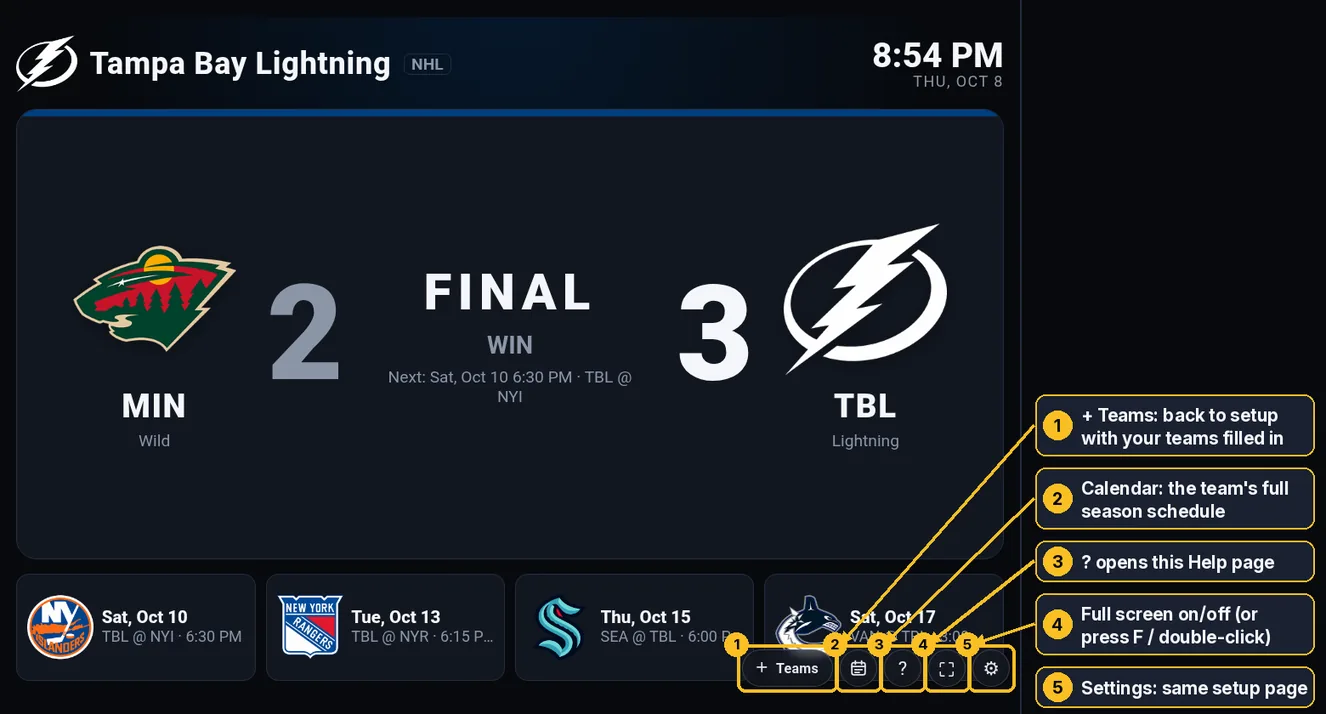
The buttons at the bottom right of the display:
- + Teams: back to setup with your current team(s) and options already filled in, so you can switch teams or add more to build a grid.
- Calendar: the team’s full season schedule (see step 8).
- ?: opens this Help page.
- ⛶ Full screen: on and off. You can also press F or double-click anywhere.
- ⚙ Settings: the same setup page.
The buttons and mouse pointer hide after a few seconds so the screen stays clean. Move the mouse or tap the screen to bring them back.
7Tips for TVs and kiosks
- Bookmark the sign's link (or set it as the browser's home page) on the TV, tablet or monitor. Everything is in the link, so it opens the same way every time.
- Tick “tap to go full screen” before copying the link. Browsers only allow full screen after a tap, so the sign shows a one-tap prompt when it opens (it disappears after a minute if nobody taps).
- The sign refreshes itself, keeps the screen awake where the browser supports it, and keeps showing the last scores if the internet drops for a moment.
- Old tablets and smart-TV browsers work fine. A grid looks best on a big landscape screen.

8See a team’s full schedule
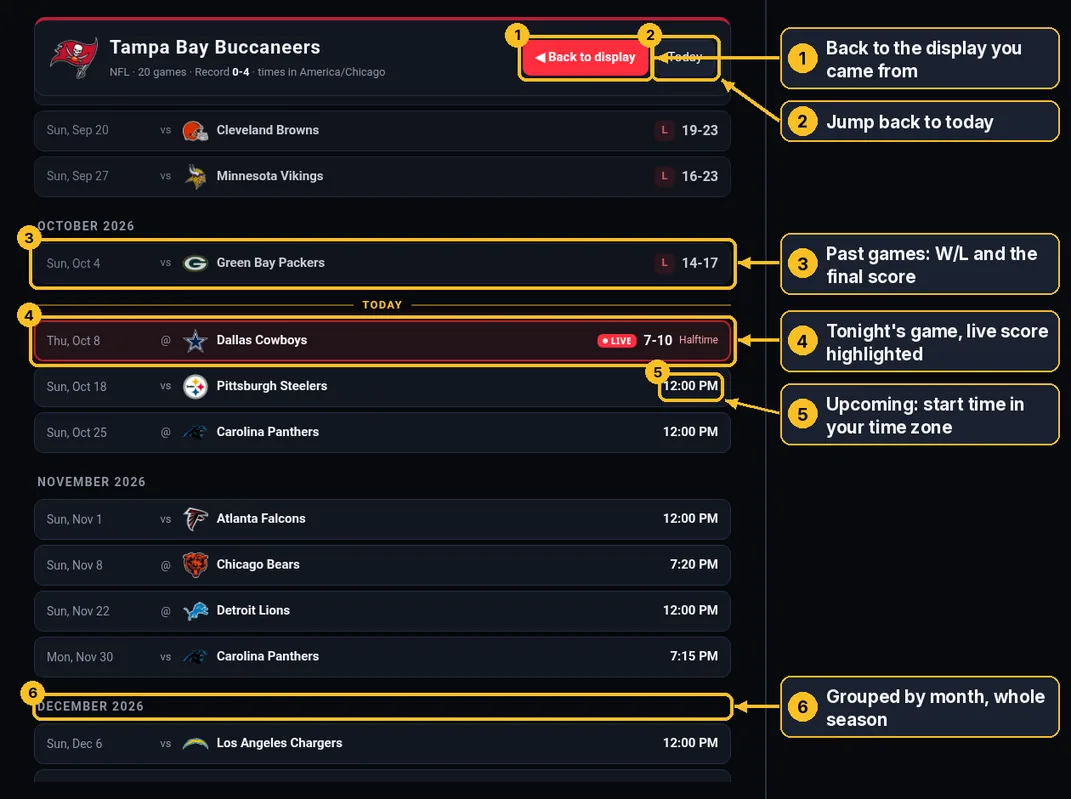
Every team has a full-season schedule page. Open it with the calendar button on the display, or the Schedule › link on any team card in setup. It opens at today; scroll up for results and down for what’s next.
- Past games show W or L and the final score (OT/SO or extra innings noted).
- Upcoming games show the date and start time in your time zone, with vs for home and @ for away.
- Tonight’s game glows red with the live score; playoff games are marked in gold with the series and game number.
- From a grid, use the team chips at the top to switch teams. ◀ Back to display returns to your sign.
Still stuck?
See About for what Game On Sign is, or the API docs if you're building your own ESP32 sign. Scores come from public league feeds and can be a little delayed.